
Showing posts with label networking. Show all posts

Thursday, July 24, 2008

Tweaking maximum half-open connection limit in XP and Vista

Microsoft has set limits for number of concurrent TCP connection attemps in WIndows, in order to protect users from malicious bots, spyware etc. Normal users will not face any problems. But the p2p applications such as BitTorrent(uTorrent, BitComent, Azureus, etc), Limewire, eMule, Sopcast, TVants and some multiplayer games (mainly P2P games) may face some slow download and upload speed due to this limit.

Registry tweaks doesn't work. They set those limits in TCPIP.SYS and other system files which need to be patched. Following explains how to patch your Windows XP and Windows Vista versions.

Windows XP
Original Windows XP & XP SP1 doesn't have any limits. But since XP SP2, only 10 concurrent TCP connections are possible.
Each time your computer tries to establish more than 10 half-open connection, a system event will be logged in Windows. It looks something like this:
"EventID 4226: TCP/IP has reached the security limit imposed on the number of concurrent TCP connect attempts"
Access the event viewer by Start / Control Panel / Administrative Tools / Event Viewer / System. Sort by Event and scroll down to 4226.

How to fix connection limit in windows xp sp2 and sp3?
It is very simple. First you download Event ID 4226 Patcher version 2.23d. Extract the contents and run ExID4226Patch.exe.

In default, it will set the limit to 50. But you can change the limit to any number you want. for eg: 1000.


Windows Vista
Windows Vista have different limit for different Vista edition. For eg, Home Basic has maximum limit of 2 and Vista Ultimate have maximum limit of 25 per second.

Go to Control Panel>Administrative Tools>Event Viewer. You could see "EventID 4226: TCP/IP has reached the security limit imposed on the number of concurrent TCP connect attempts" under System log.


How to fix connection limit in vista?
Vista have enhanced security. So tweaking limit is not easy as in xp.

First you need to find out which version of tcpip.sys you have. Go to \Windows\System32\drivers folder, right click on tcpip.sys and select “Properties”, and the version info will be listed in “Details” pane.
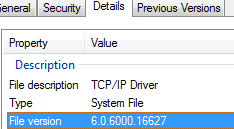
Download the patch for your tcpip.sys version
Unpack and extract the content of the archive. Follow the instructions in the README.TXT file that comes with the patch. For running InstallPatch32.bat (for x86 system) or InstallPatch64.bat (for x64 system), administrator rights elevation required. Right click on command prompt(start>programs>accessories) and select "Run as Administrator". Execute the bat files using this command prompt.

IMPORTANT
Vista (32/64) requires all drivers to be digitally signed. It will fail to boot up or block driver from loading.

One way of to solve this issue is by pressing F8 during initial boot of the Windows Vista system, and then select Disable Driver Signature Enforcement in the “Advanced Boot Options” menu. However, you have to repetitively do the same process again and again on every system reboot.

But you can automate this process using ReadyDriver Plus. You can download it from here. It will ask for /BOOT path(choose drive which vista is installed). If you have dual boot, you need to choose number of keystrokes. For eg: if you have windows xp under windows vista in boot menu, you need to select 2 keystrokes.

Sunday, July 6, 2008

Port Forwarding


Many of the broadband ISP(Internet Service Provider) provides you a router instead of modem. A Router is a device that forwards data packets along network. A broadband router connect LAN(Local Area Network) and ISP's network. Routers use headers and forwarding tables to determine the best path for forwarding the packets. If you have a LAN or having multiple computers which connect to internet then router is best.

Every devices on the internet has an unique IP address which helps to identify that device in internet. In a router based internet connections your PC will not be directly connected to internet like connections using modem. This will seriously affect Online multiplayer games and P2P applications(eg: Bit Torrent).

Port Forwarding(tunneling) is basically forwarding a port from one node to the other. This technique allows an outside user to access a certain port (in a LAN) through a NAT (Network Address Translation) enabled router.

Check whether your connection is router based or not?
  • Go to Run ([Windows key]+R or Start->Run)
  • Type "cmd" and press [Enter] (for 95, 98 & ME use "command")
  • It will open Command prompt. In that, type "ipconfig" and press [Enter]
  • If the IP Address(IPv4 Address for Vista) & Default Gateway are in 192.168.x.x range then you have router.

Setup static IP for your PC
  • In Windows XP, go to Control Panel->Network Connections. In Windows Vista, go to Control Panel->Network and sharing center->Manage network connections
  • Right click on your connection and choose properties. It will open Local Area Network Connnection properties.
  • Click on Internet Protocol [TCP/IP](TCP/IPv4 for vista) and click on Properties button.
  • If it is not set as Obtain IP Address automatically then your IP is static.
  • Otherwise type ipconfig/all in command prompt and note information such as IP Address, Subnet mask, Default Gateway and DNS Adresses.
  • Click on the Use following IP address and fill in all the boxes using those values and click Ok button.


Setting up Port forwarding
Different applications and games uses different ports. Setting up port forwarding is different for all routers.
Visit website http://portforward.com/routers.htm and choose your router model. It will guide you how to set up port forwarding in your router.

Summary of steps involved:
  1. Open your router's configuration page in your browser. for eg: http://192.168.1.1/ which is same as your gateway ip address.
  2. It will ask for usernam and password. For username:password try admin:admin or admin:password or ZXDSL:ZXDSL or root:root or both blank.
  3. Look for the page like "Port forwarding" or "Virtual Servers" or "NAT Configuration".
  4. Click on the Add button or link.
  5. For Server IP use your computer's IP. For eg: 192.168.1.2. External and Internal port range are same values. For Single port, give same port value for start and end. If you are not sure about protocol, set up for both TCP & UDP.
  6. After configuring, you need to restart router.
Ports
Some of Game ports are listed below. If you cannot find your application/game in this list then go to website http://findports.com/document.php?id=1095
Game Port(s) Protocol
Age of Empires
Age of Empires Expansion: Rise of Rome
Age of Empires II: the Age of Kings
Age of Empires II Expansion: The Conquerers
Age of Wonders
47624 TCP
2300-2400 TCP, UDP
6073 TCP
America's Army 1716 ???
Asheron's Call
Asherson's Call Dark Majesty
9000-9013 UDP
Baldur's Gate 47624 TCP
2300-2399 TCP
2300-2399 UDP
Battlezone 2 17770 UDP
17771 TCP, UDP
17772 UDP
Blizzard Battle.Net 4000 TCP, UDP
6112-6119 TCP, UDP
Close Combat
Close Combat: A Bridge Too Far
Close Combat III: The Russian Front
47624 TCP
2300-2400 TCP
2300-2400 UDP
Close Combat IV
Close Combat V
47624 TCP
2300-2400 TCP
2300-2400 UDP
Counter Strike 27030-27039 TCP
1200 UDP
27000-27015 UDP
Diablo
Diablo II
Diablo II: Lord of Destruction
4000 TCP, UDP
Dungeon Siege 80 TCP
2300 UDP
6073 UDP
2302-2400 UDP
Empire Earth 33334 UDP
33335 TCP
GameSpy Arcade 6667 TCP
3783 TCP
27900 TCP
28900 TCP
29900 TCP
29901 TCP
Half-life 27015 TCP
Kali 2213
+ 1 for each client
TCP
MechWarrior 4:Vengeance 6073 TCP
2302-2400 UDP
27999 TCP
28000 TCP
28805-28808 TCP
9999 TCP
Microsoft DirectPlay4
DirectX7 Lobbyable App
47624 TCP
2300-2400 TCP
2300-2400 UDP
Microsoft DirectPlay8
DX8 Lobbyable App
6073 UDP
2302-2400 UDP
Microsoft DirectX 7
CART Precision Racing, version 1.0
Combat Flight Simulator
Flight Simulator
MechCommander 2.0
Midtown Madness
Monster Truck Madness
Motocross Madness
Urban Assault
47624 TCP
2300-2400 TCP
2300-2400 UDP
Neverwinter Nights 5120-5300 UDP
6500 UDP
27900 UDP
28900 UDP
Quake 4 28004 UDP
27950 UDP
Sacrifice 6073 UDP
2302-2400 UDP
Star Wars: Galactic Battlegrounds 47624 TCP
2300-2400 TCP
2300-2400 UDP
Starcraft
Starcraft: Brood War
4000 TCP
Unreal Tournament 7777 TCP, UDP
Warrock 5340 TCP
5350 UDP
World of Warcraft 3723 TCP
6112 TCP
6881-6999 TCP
World War II Online 27015-27020 TCP
Microsoft Zone.com 6667 TCP
28800-29000 TCP

DMZ
This is a feature included in some routers. A DMS allows router to forward all the ports to a single machine. If you are the only one who uses internet through that router then I recommend you to set up DMZ instead of port forwarding. It will make your router act like modem.
Setting up DMZ is very simple. First setup static IP for your PC. Then in the DMZ configuration on your router, give your computer's IP in the Server IP address box and click Save or Ok. After configuring, you need to restart router.